

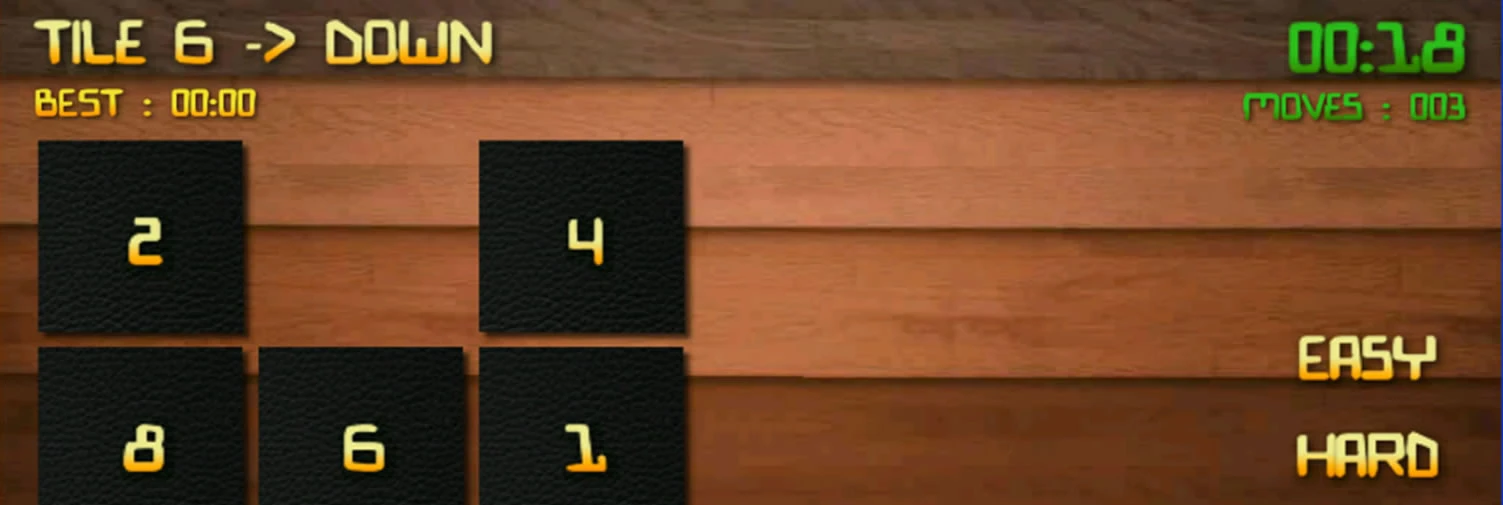
… This post is meant to help you set up your first Cocos2D Android Project.
Note : The Cocos2D for Android project using in my tutorials are a JAVA port of the Cocos2d-x project written in C/C++ . If you are interested in integrating the C/C++ version, then click this link to learn more about that. The benefit of using the C/C++ version is that it “sort of” cross platform, and its easier to modify your codebase in order to make your game run on iPhone/Blackberry/Android . However, you are not a C/C++ programmer and do not want to get involved in the dirty mess of pointers et al, then use the Cocos2D for android project below.
Before you proceed with this tutorial, ensure you have completed the following checklist
- Download Cocos2D-android library from Github
- Download Eclipse IDE for Java Developers
- Download the Android SDK , and Install the Android Developer Tools (ADT Plugin) by following this tutorial by Google
- Setup an Android Virtual Device (AVD) Simulator for testing . In Eclipse, choose Window > Android SDK and AVD Manager. Select Virtual Devices in the left panel.Click New.The Create New AVD dialog appears.Type the name of the AVD, such as “my_avd”.Choose a target. The target is the platform (that is, the version of the Android SDK, such as 2.1) you want to run on the emulator. It is recommended to use Android 2.1 and above for Cocos2d development. Detailed information on testing android applications using an actual android device such as an android tablet pc or mobile phone can be found here .
Setting Up Cocos2d Source Package
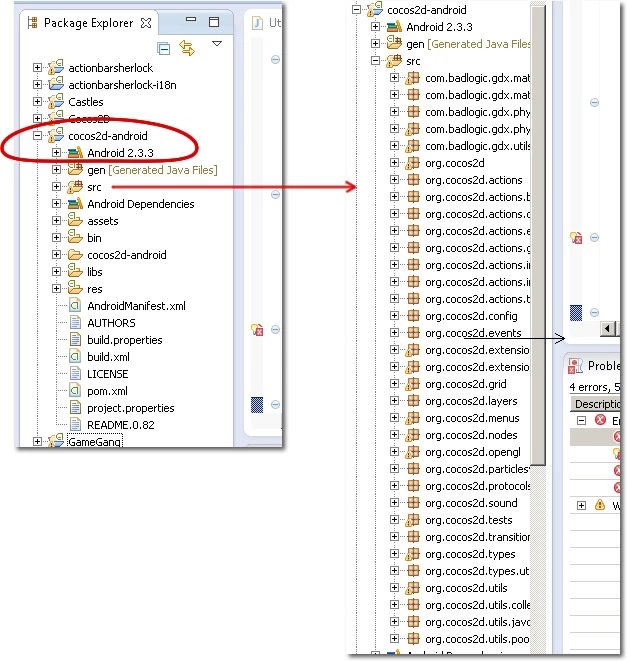
After downloading Cocos2d (cocos2d-master.zip), copy the cocos2d-android folder to your Eclipse workspace and import it as an Android project . The cocos2d-android folder is a full fledged android project with sample code that demonstrates the capabilities of the cocos2d engine. It may be used as a library project (referenced by other full android projects) or run as a standard Android Project. The src folder contains all the java classes for each function within the game engine. To import, use the following steps
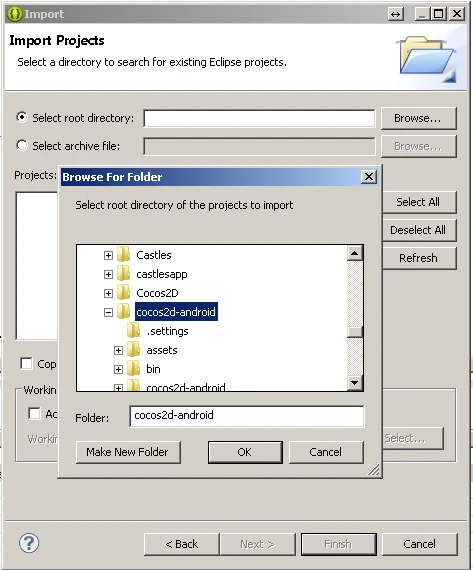
- File > Import > Existing Project into workspace
- Select root directory > Browse . Select your workspace folder and locate the cocos2d-android folder in it
- Now you should have your package explorer look like this
Running the Cocos2D Source Package
- To run the project as an android app you must deselect the library option.Right Click on the project > Properties > Android (on the left) > Deselect the “Is Library” Options. Click Apply and OK.
- Delete the cocos2d-android.jar file in the bin directory. Failing to delete this file will result in compile errors (both the src files and the .jar file contain the same classes … its like two files with the same name trying to reside in the same directory … a no no).
- Right click on project > Run As > Android Application
- You may be prompted to create an appropriate target AVD (simulator) to run your application. Follow the prompt .
You should have your simulator running and looking like this … 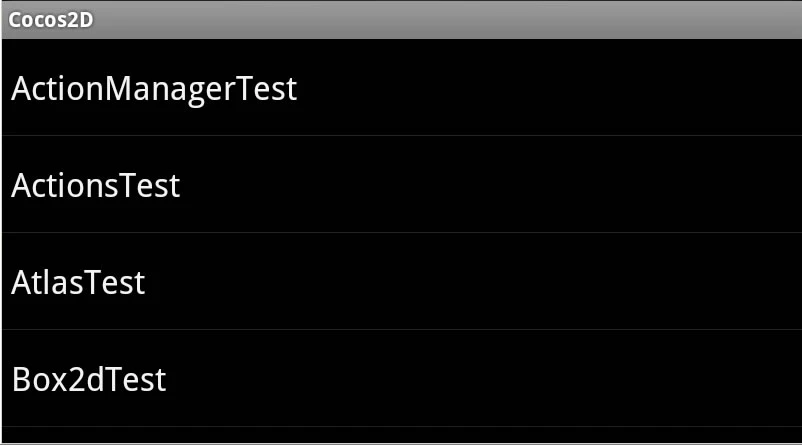
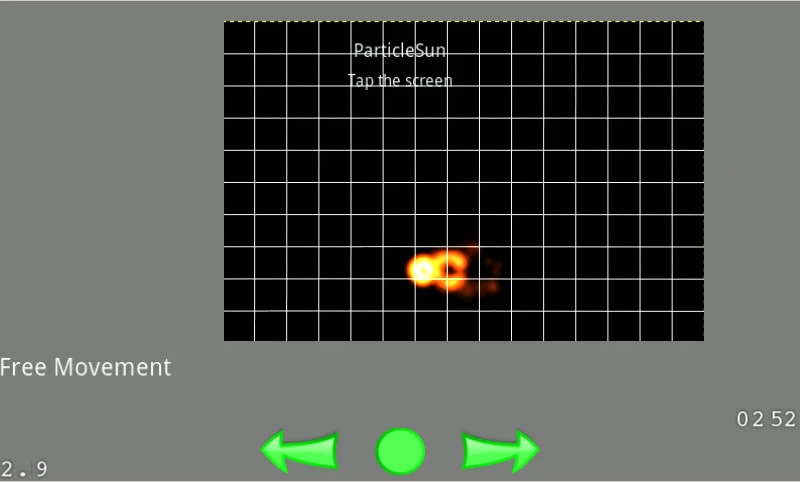 Congratulations, you have set up Cocos2D for Android. In order to identify which part of the code is responsible for the different sections of the sample code running above, you can review the project code under package explorer .. src > org.cocos2d.tests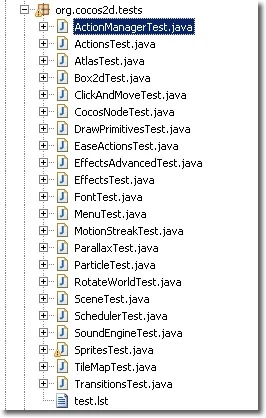
Next Steps
You may peruse the next articles on building your first Slider Puzzle game using Cocos 2D.
Step by Step Guide on How to build your first Slider Puzzle game in Cocos2d for Android – Part 1
http://denvycom.com/blog/step-by-step-guide-on-how-to-build-your-first-slider-puzzle-game-in-cocos2d-for-android-part-1/
Step by Step Guide on How to build your first Slider Puzzle game in Cocos2d for Android – Part 2 http://denvycom.com/blog/step-by-step-guide-on-how-to-build-your-first-slider-puzzle-game-in-cocos2d-for-android-part-2/
I have also included the final source code output for the Slider Puzzle Game here . Simply donwload it, unzip it into your eclipse workspace and import it from eclipse as an existing project. You should be good to go! which you can import and using the steps above. The code in the github repository above is a part of the Gidigames Android app [Now FULLY Open Sourced] I published a while ago. Good luck!




Pingback: Step by Step Guide on How to build your first Slider Puzzle game in Cocos2d for Android – Part 1 | Denvycom()
Pingback: How to Slide a Sprite around based on touch/drag input in Cocos2D for Android | Denvycom()