
Im not sure how often this occurs, but after downloading updates on my new Windows 8.1 installation and restarting, the update process just froze up and windows could not start up. One (costly) solution is to just re-install the operating system, refresh or reset the OS – and you would need your installation CD or a recovery partition.
This post details how you can recover from the above Windows update error without a need for the installation CD or recovery partition. From my experience, this error occurs after windows automatically downloads and installs “updates” and requests a restart. To fix this problem, the new updates need to be uninstalled .
I followed 3 simple steps. – Get into advanced startup settings, enable safemode, and then uninstall the guilty updates.
Some background on the problem
Given the Windows 8 requirement for Windows Phone 8 App development, I decided to install Windows 8 on a 60 GB partition on my laptop. Installation was buttery smooth and in less than 30 mins I was up and running. SDK took about another hour to download and finish installing. It installs a boot loader that detected my windows 7 installation and gives me the option of selecting which operating system I would like to boot into whenever I startup.
AND THEN WINDOWS AUTOMATIC UPDATES CAME ALONG.
It requested permission to install updates for visual studio, .NET framework , Graphics Drivers etc. I’m not sure the exact update that was responsible, but after I restarted my laptop and tried to boot into windows 8.1, it gave the following message
Installing Updates … (about 10 minues)
We couldn’t complete the updates, Undoing changes, Don’t turn off your computer (30 mins plus)
It showed this for about 30 minutes and I decided to force restart , then the error messages got a bit more hopeful
Installing Updates 15% … (about 10 minues)
We couldn’t complete the updates, Undoing changes, Don’t turn off your computer (10 mins)
Restarting …
and then
Installing Updates 30% … (about 5 minues)
We couldn’t complete the updates, Undoing changes, Don’t turn off your computer (5 mins)
Restarting …
and after this, the cycle just kept recurring.
Fixing the Problem
As stated above, the problem was by Getting into advanced options, Enabling Safe Mode and Uninstalling all recent updates available. The first part of this process is done during the boot process .
Step 1. Get into Advanced Startup Options
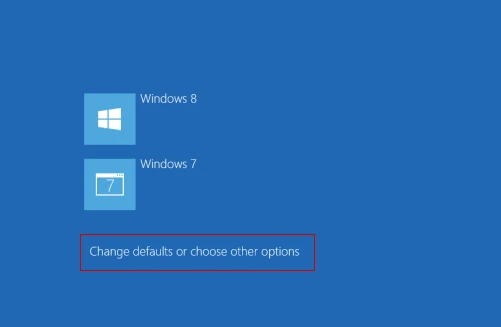
If you have only Windows 8.1 installed on your pc, some articles online say you can hold down F8 or SHIFT F8 to load the advanced startup screen. It works sometimes and sometime it doesnt. Luckily for me, I had this operating system selection screen that windows provides when there are multiple detected operating systems installed on a computer. If you do not have this operating system selection screen, check out this tutorial on other methods of accessing advanced startup options .
At the operating system selection screen, click on change defaults or chose other options.
On the “Choose an option” screen, select Troubleshoot
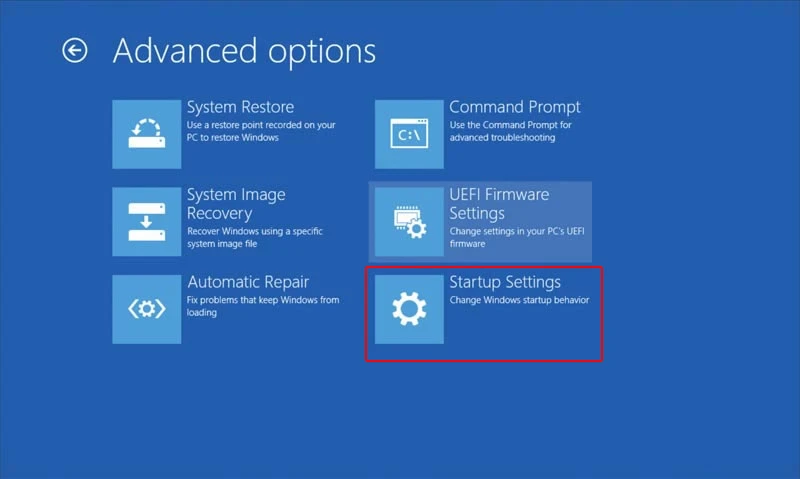
On the “Troubleshoot” screen , select Advanced Options
Step 2 – Enable Safe Mode.
On the “Advanced Options” screen , select Startup Settings
On the “Startup Settings” screen , select restart.
After the restart process Windows gives you the option to Enable Safe Mode
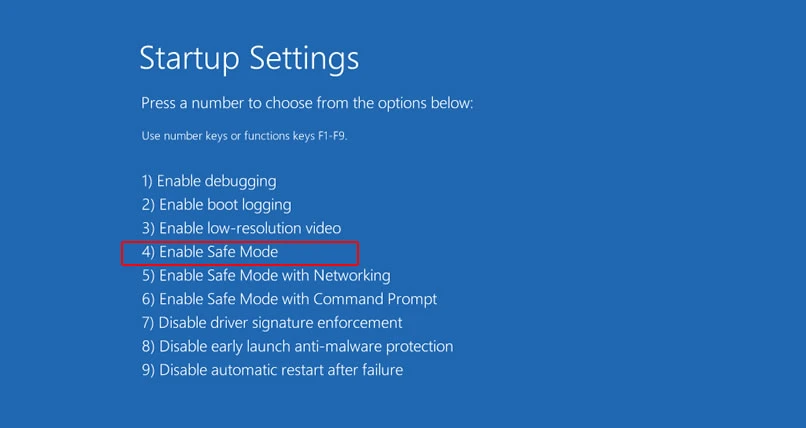
Press 4 (Enable Safe Mode) .This should reboot your pc and after you select the Windows 8.1 boot option, it should allow you boot into safemode. If it still shows the update messages again, you can wait a bit and suffer a few restarts following the process above to boot into safe mode.
Step 3. Uninstall Updates or Perform System Restore
At this point, there are two ways to proceed. You can either perform a system restore if you have previously created a system restore point before the “faulty updates were installed” . On the other hand, you could manually uninstall the offending updates.
To perform a System Restore : Follow the details in the link here
To Manually Uninstall Updates :
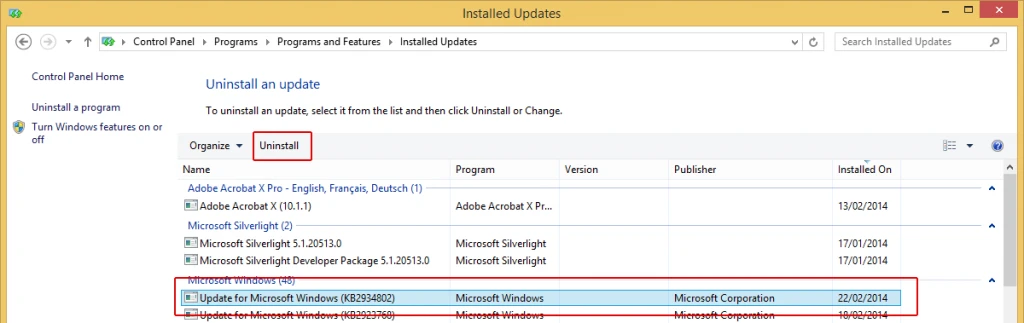
Go to Control Panel (you can simply search for it).
Got to Programs and Features
On the left, click View installed updates .
Select each of the recently installed updates and uninstall them.
Restart your PC and you should be back in business. I had to restart my pc a couple of times after the steps above before it finally got past the “installing updates”. So you may want to restart a couple more times.
Hope this has been helpful. Feel free to share your experience in the comment and what worked for you.