
… Getting ADB to work on Samsung Galaxy S2 running CyanogenMod 10.1
ADB is important because it enables you easily test you android apps directly on your devices, circumventing the long compile/run time associated with testing apps on an android virtual device (simulator) .
For some reasons, after flashing my trusted Galaxy S2 with CyanogenMod 10.1 (CM10), ADB (Android debug bridge) did not recognize it.
So, after several hours (days) of trouble shooting the matter, here’s what worked.
- Uninstall any Samsung and Kies drivers previously installed. Turns out these drivers don’t cut it after you flash on CM10 .
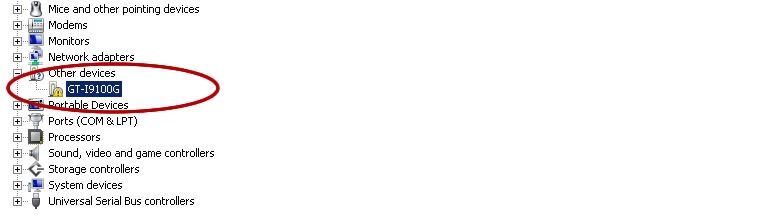
- After uninstalling any previous drivers, ensure that your device shows up in device manager – If it doesn’t, you might want to restart your machine and reconnect your device.
- Download Google SDK USB Drivers via SDK Manager and A modified inf Driver file here . Replace the driver inf file in the sdk usb driver (\sdk\extras\google) folder with the modified inf file .
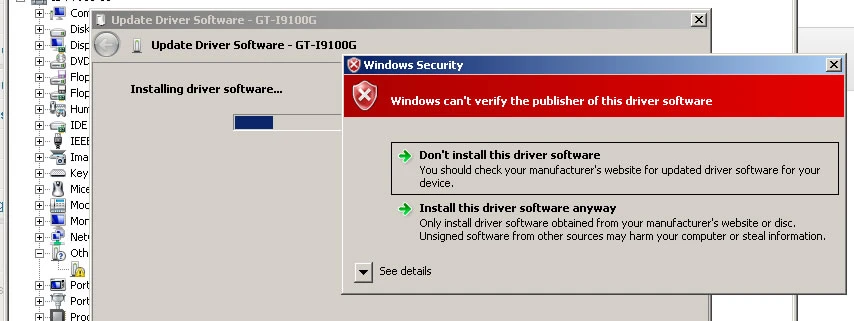
- In device manager update your device driver and point it to the Google USB driver folder with the modified inf file. It may pop up a warning – Windows cannot verify the publisher of this driver. Accept and continue .
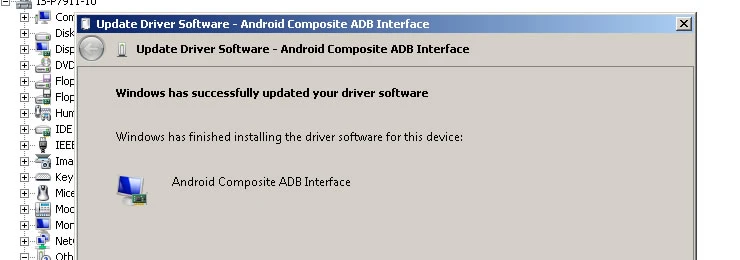
- If you have succeeded this far, ADB should be able to recognize your device now. Use the adb devices command to show a list of connected devices.
- Next, if you device shows as offline – there’s more work to be done, follow the steps below
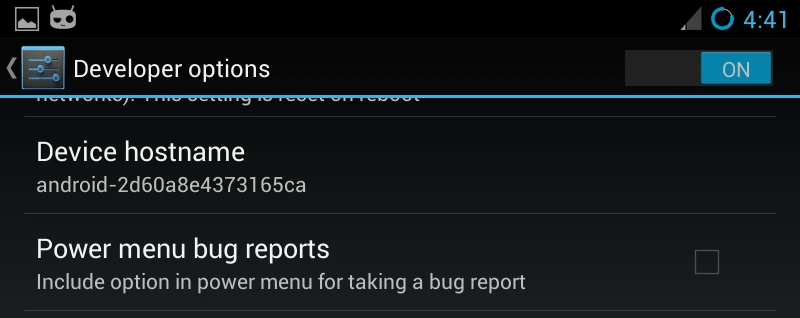
- Enable USB debug mode . In CM 10, the developer options may be hidden. Go to Settings > About Phone > Build Number . Tap build number 7 times and developer option will be enabled. You can now go back to Settings > Developer Options >
Enable developer options and also USB debugging mode .
At this point, I was able to connect to my device!! . - Finally update your SDK Tools (platform tools) through SDK manager to atleast version 16. In some cases it make be wise to scratch your current eclipse android installation and make a fresh one with the latest sdk, adt, adb and associated tools.
- You should be ready to roll now!Let me know in the comments if this worked for you! Happy on device debugging!
Update :
Update : For those who are running the stock Android that comes with Samsung Galaxy S2 and having difficulties getting ADB to work … Carry out steps 1-6 above .. enable debug mode and try the following below:
- Unplug the USB cable
- On the device, dial the following number: *#7284# Once the last # is hit, the PhoneUtil application is launched.
- Choose USB -> Modem and then USB -> PDA mode.
- Select PDA mode.
- Even if the mode is PDA, switch to Modem and then back to PDA.
- Plug the USB cable.
ADB should work at this time.