
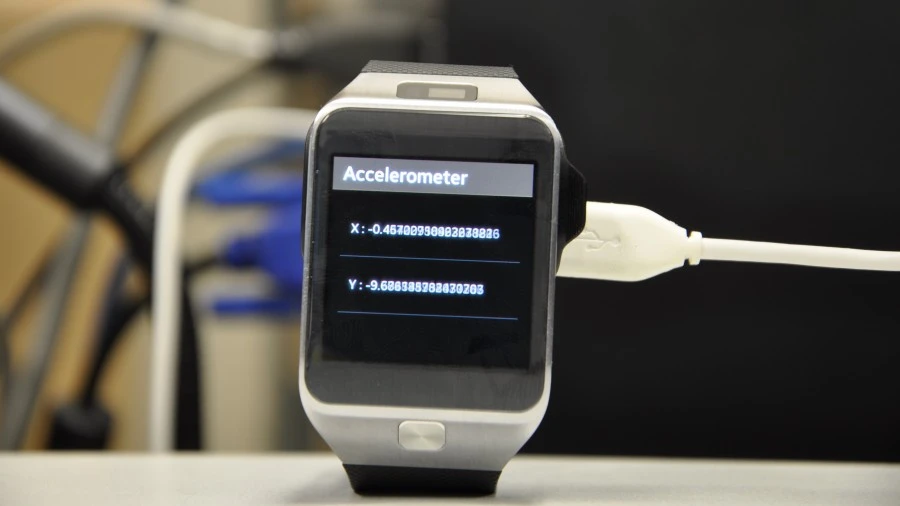
One more important way to overcome user-interaction challenges on wearable devices is to implement hands-free interaction via sensors. Today, we’ll be looking at code to obtain tilt information from the Gear 2 accelerometer sensor. Luckily, it is a straightforward and easy process.
How to Access Accelerometer data in Javascript
To do this, you simply add an event listener for the “devicemotion” event. Next you get the X , Y and Z tilt values ( between 0 – 9 ) for both the X ,Y and Z axis.
See Also : How to store data in your gear 2 apps
window.addEventListener('devicemotion', function(e) {
		ax = e.accelerationIncludingGravity.x;
		ay = -e.accelerationIncludingGravity.y;
		az = -e.accelerationIncludingGravity.z;
		document.getElementById("xaccel").innerHTML =  'X : ' +  ax;
		document.getElementById("yaccel").innerHTML = 'Y : ' + ay;
		document.getElementById("zaccel").innerHTML = 'Z : ' + az;

	});
As you tilt the device in each direction, the values increment (with very high precision and at a very fast refresh rate too ..) from 0 – 9 and you can use this as a form of input in your app, especially in your games! And thats it!
Update : You can also get Data on Rotation
rotx = e.rotationRate.alpha ;
roty = e.rotationRate.beta ;
rotz = e.rotationRate.gamma ;
Gimme that Code ..
I’v created a sample Tizen Wearable Project which you can import and modify right there on Github .
Testing the Code Without A Real Device.
The Gear 2 tizen emulator doesnt come with the ability to inject dummy accelerometer values (or that I know of currently) . There however is another way to emulate your accelerometer values. You can use the Chrome Browser, since the functions used fall within the html5 specification. You can use the following steps
– Open your html file in the chrome browser (outside of the sdk environment) . In this case, we will open index.html
– Press F12 (Ctrl + Shift + I) to reveal the Chrome developer tools panel .

– Press the escape button (ESC) to reveal the emulation tab
– Select Emulation, and under screen set your width and height to 320 px. Also set the pixel ration to 1. This mirrors the gear 2 device screen quite closely.
– Still under emulation, click sensors and you should be presented with accelerometer options. To modify the values, you can rotate the the image displayed and appropriate accelerometer values are generated.

Your window.addEventListener(‘devicemotion’, function) listener should respond to these changes/generated accelerometer values .
A Simple Application of the Accelerometer
Checkout dansa .. a fun dance companion app that tracks your dance moves as you boogie down! You know you can dance, and Dansa can prove it! Turn on some music, turn on dansa, start dancing and earn points! Yes, dansa is PERFECT for your dance workout! Also enjoy the flashy animations that light up the screen as you earn those awesome dansa points.