
Whilst developing your Gear 2 apps you will likely need to store data and keep state. This post discusses the 3 main ways you can achieve this – HTML5 Webstorage, IndexedDB and good old Files .
HTML5 Web Storage.
Since your apps are written in HTLM5 and compiles using a webbrowser-like runtime engine, you can use the HTML5 Web storage paradigm for data storage and retrieval. An excerpt about webstorage is given below :
With HTML5, web pages can store data locally within the user’s browser.Earlier, this was done with cookies. However, Web Storage is more secure and faster. The data is not included with every server request, but used ONLY when asked for. It is also possible to store large amounts of data, without affecting the website’s performance. The data is stored in name/value pairs, and a web page can only access data stored by itself.Unlike cookies, the storage limit is far larger (at least 5MB) .
This method is great for data (text) that doesn’t grow too large such as settings, preferences etc.
It works across app sessions, ie data can be successfully stored and retrieved across app launches. This is what is used to store highscore data for the Blocks Gear app.
Snippet below simple stores and retrieves text data using a key.
// Store
localStorage.setItem("lastname", "Smith");
// Retrieve
document.getElementById("result").innerHTML = localStorage.getItem("lastname");
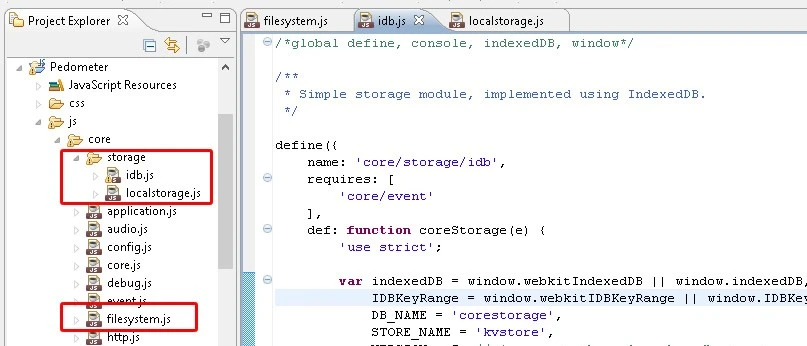
Having said that, there is some sample code within the Gear 2 sample apps that demonstrates how you can use webstorage . You can locate it by importing the pedometer project and inspecting the subfolders > js /core/storage/localstorage.js . The code is written using in the functional programming paradigm and may need a bit of time to catch on to.
Indexed DB
IndexedDB is an API for client-side storage of significant amounts of structured data and for high performance searches on this data using indexes. IndexedDB is a transactional database system, which is initially confusing if you are only used to working with relational databases, but becomes clear soon enough. IndexedDB lets you store and retrieve objects that are indexed with a key. You need to specify the database schema, open a connection to your database, and then retrieve and update data within a series of transactions.
This method is great for data that exhibits fairly complex relationships and is expected to grow large. For example historical data on sensor measurements (heart rate, pedometer etc) over time
Having said that, there is some sample code within the Gear 2 sample apps that demonstrates how you can use IndexedDB . You can locate it by importing the pedometer project and inspecting the subfolders > js /core/storage/idb.js .
Sample snippet below to retrieve value for a given key ..
/**
         * Gets value for given key from the storage.
         *
         * The method fires the core.storage.read event upon completion.
         * @param {string} key Key.
         * @return {object?} Json object.
         */
        function get(key) {
            var trans = db.transaction([STORE_NAME], 'readwrite'),
                store = trans.objectStore(STORE_NAME),

                // Find the key in the store
                keyRange = IDBKeyRange.only(key),
                id = addPendingRequest(EVENT_READ, key),
                cursorRequest = store.openCursor(keyRange);

            cursorRequest.onsuccess = function onCursorOpenSuccess(ev) {
                var error = null,
                    cursor = ev.target.result;

                if (!cursor) {
                    error = new Error('No records returned');
                    error.name = 'StorageNotFoundError';

                    e.fire(EVENT_READ, {
                        id: id,
                        key: key,
                        error: error
                    });
                    removePendingRequest(id);
                } else {
                    e.fire(EVENT_READ, {
                        id: id,
                        key: cursor.value.key,
                        value: cursor.value.value
                    });
                }
                removePendingRequest(id);
            };

            cursorRequest.onerror = function onCursorOpenError(err) {
                removePendingRequest(id);
                console.error(err.target.error.message);
            };

            return id;
        }
Local File Storage.
Gear 2 also supports storage of data in files. Again, there is some sample code within the Gear 2 sample apps that demonstrates how you can do this .
Locate it by importing the pedometer project and inspecting the subfolders > js /core/filesystem.js .
This method is great for storing large files such as images, audio, video etc.
Code snippet below saves data to a file … for more be sure to inspect filesystem.js
/**
* Saves specified content to file
*
* @param {string} path file path.
* @param {string} content file content.
* @param {function} onSaveSuccess save success callback.
* @param {string} fileEncoding file encoding.
*/
function saveFileContent(path, content, suc, encoding) {
var pathData = getPathData(path),
fileHandle;

function onOpenDirSuccess(dir) {
// create new file
fileHandle = createFile(dir, pathData.fileName);
if (fileHandle !== false) {
// save data into this file
writeFile(
fileHandle,
content,
suc,
false,
encoding
);
}
}

// open directory
openDir(pathData.dirName, onOpenDirSuccess);
}
Conclusion
Generally, as a rule of thumb, there is a need to balance (and minimize) the amount of processing you do on your smartwatch . You don’t want heavy activities that drain the battery or make the smartwatch unresponsive – users hate that. In cases where the data being stored is very large and heavy processing needs to be done, consider computational offloading with an integrated app where the host device (android smart phone) does all of the processing and sends results to the smartwatch to be displayed. If you know any better methods, feel free to discuss them in the comments below .