

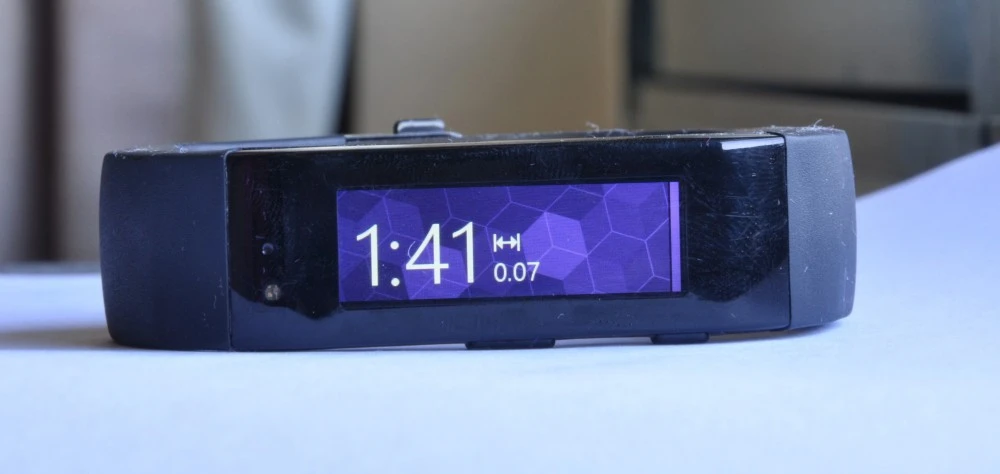
This post covers the steps needed to start streaming data from a Microsoft Band to your android app. There are numerous applications for this – including using this data as an input source as well as building nice use cases based on the data collected. It was surprisingly easy to actually stream data from a Microsoft Band to my app! Great Job Microsoft Developer Team!! The only thing is that in order for your app to successfully connect to the band, you need to have the Microsoft Health App installed. This is because the Health App installs the Microsoft Band Service which is constantly streaming data from your band .. and which can make this available to your app. After pairing my band to Microsoft Health It took less than 5 minutes to from zero to displaying data .
Step 1. Install Microsoft Health on your device
Download the Microsoft Health Android App from Google Play. Sometimes, Google Play may say that the Health app is not available for your region (happened to me when I registered from an account located in Hong Kong) . To fix this, you can create a Google account that is located in the USA and use that when signing in to Google Play. Ensure that you have successfully paired your band with the Microsoft Health App before you continue.
Step 2. Download the Microsoft Sample
Microsoft has provided a set of excellent examples [Download here] that can get you started. After unzipping the files, you should be able to view multiple android application projects which you can now import into your eclipse workspace and run. Import the “BandStreamingApp” project . You may need to adjust the project.properties file and set your android target to your test device api level. E.g if you are testing on a device that supports andrioid-22, you should have
target=android-22 .
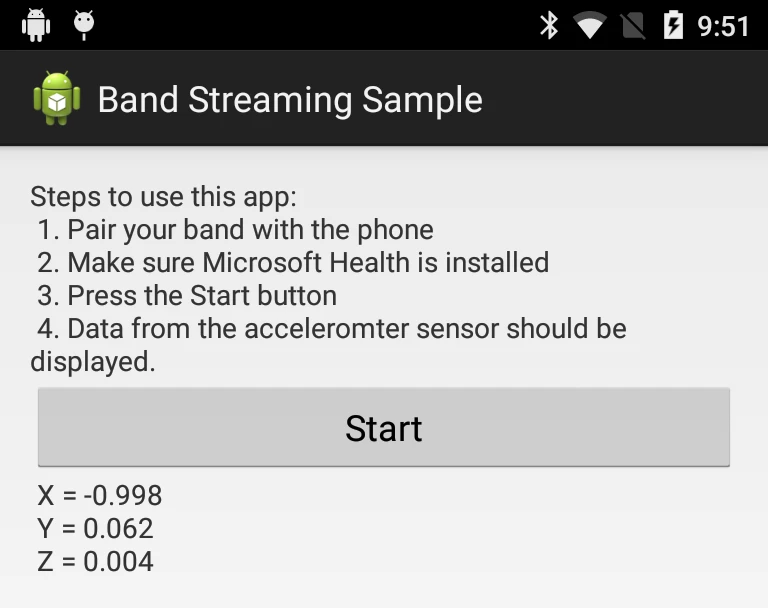 To further understand how this code snippet works, here are some quick explanations. Given that the process of connecting to a band/band service will likely have some delay or fail (e.g device not connected, bluetooth off, battery dead etc), it is executed on a different thread using an android AsyncTask class called appTask. In this class, a few things occur –
– A connection attempt is made to the Band/Band Service.
getConnectedBandClient()
– If successful, a request is made to listen for changes in accelerometer readings.
client.getSensorManager().registerAccelerometerEventListener(mAccelerometerEventListener, SampleRate.MS128);
Streaming SampleRate
MS128 = 16 samples per second
MS32 = 32 samples per second
MS16 = 64 samples per second (really fast)
This can also be extended to listen for changes in all other available sensors – heartrate, uv, pedometer, light, gyroscope.
– The results are then sent back to app UI Thread via the appendToUI method.
Android Studio Alert
– Creating a regular test app in android studio and attempt to run that on your device. If this works correctly, thats great ….
– Now go to the downloaded source code and try to copy its content into your now working android studio application. Specifically, copy the content of libs, res and src to their equivalent in your android studio gradle project. You might find this link useful . You might also need to add the Microsoft jar as a library to your project .. see here on how to go about that .
– Now, try to compile your project. Luckily it works . But sometimes … these things just don’t work on the first try 🙁
– Continue the debugging process till all works out.
Step 3. Peruse the Documentation
The best way to understand the full power of the SDK the Microsoft Team has put together is to read the Band Developer Documentation here . I have recently worked a little with Android Wear, and a lot with Samsung Gear, and this has been the most pleasant development/prototyping experience. Again, kudos to the Microsoft Developer Team!
What was your experience like ? Feel free to share in the comments below!
 Getting Started with Windows Phone 8 Apps Development
 Socket Programming : How to Integrate Socket.io java Client in your Android App without Maven
 Comparison of SmartWatches and Sensors with 3rd Party Developer Access
 Foqus – A Mental Health and Mindful Meditation App